iPhone Passport Photo 2026 (5-Minute Setup, Won't Get Rejected)
By Elena Dev, Founder · April 29, 2026 · 6 min read
Your iPhone has a better camera than the kiosk at any drugstore. The reason home passport photos get rejected is rarely the camera - it's the setup, the framing, and the crop. This guide walks through exactly how to make an iPhone passport photo that passes the first time.
Quick summary
- Camera: any iPhone from the last 6 years works (iPhone X or newer is ideal)
- Mode: standard Photo mode at 1x zoom - never Portrait, never zoom in
- Distance: 4-5 feet from a plain wall, photographer 6 feet from you
- Lighting: large window in front of you, no light behind
- Edit: crop and resize using a country-specific tool
Step 1: Settings to change before you shoot
Open Settings → Camera and check these:
Format: High Efficiency or Most Compatible. Either works. High Efficiency saves space (HEIC), Most Compatible gives standard JPEG. If your photo lab needs JPEG, pick Most Compatible.
Preserve Settings → Live Photo: OFF. Turn off Live Photo before shooting - the motion frame can confuse passport tools.
In the camera app itself: tap the up-arrow at the top, make sure flash is OFF, HDR is AUTO or OFF, set timer to 3 or 10 seconds if you're alone.
Step 2: Set up the background
Find a plain wall - white or very light grey. A blank door also works. Do not stand against:
- Wallpaper, even if subtle
- A painted wall with visible texture
- Any wall close to a colored object (it reflects)
- A window (the light through it will overexpose)
Stand 2-3 feet away from the wall, not pressed against it. This eliminates shadows on the background, which is the single most common reason home passport photos get rejected.
Step 3: Position the iPhone
The iPhone should be at your eye level - not below, not above. If it's below, the camera looks up your nose. If it's above, your forehead becomes the dominant feature.
Three ways to hold the camera at eye level:
- Tripod with phone mount. $15 on Amazon. Sets it at exact eye level, hands-free.
- Stack of books on a table. Place your phone vertically against a stack of books at the right height. Use the timer.
- Another person. Have someone hold the iPhone at their own eye level (not yours). Tell them to step 6 feet away - closer than this introduces lens distortion that warps your face.
Step 4: Lighting
The hardest part of a home passport photo is lighting, and the trick is simple: face a window.
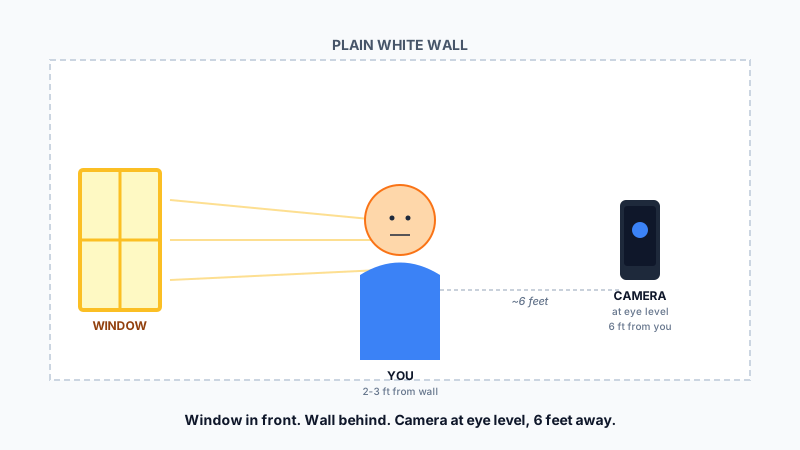
- Stand 4-5 feet from a large window with daylight (no direct sun)
- The window should be in front of you, slightly to one side if you want it to look natural
- The wall behind you should be lit too, but indirectly
What to avoid:
- Light behind you: silhouettes your face, makes the background overexposed
- Light directly above: creates shadows under the eyes, nose, and chin
- Mixed light sources: daylight + warm indoor bulbs causes color casts that fail biometric checks
Step 5: Pose
- Face directly at the camera (not turned)
- Shoulders level
- Eyes open, looking at the lens
- Mouth closed. No smile. The US, Canada, EU, India, China, and most other countries reject smiling photos. See the full country breakdown.
- Glasses off (the US has banned glasses in passport photos since 2016)
- Hair pulled away from the face if it covers eyebrows
- No hat, no headband (religious head coverings are usually allowed)
Step 6: Take multiple shots
Take 5-10 photos. Move your head a few millimeters between each. Why?
- Closed eyes show up surprisingly often
- Slight head tilts only become visible later
- One frame will have better lighting than another by accident
- You can pick the cleanest one
Step 7: Crop and resize
This is where home passport photos most often go wrong, even with great photography. Each country has specific dimensions and face-coverage rules:
- US: 51×51mm (2×2 inches), face takes 50-69% of the frame
- UK: 35×45mm, face takes 50-75% of the frame
- Schengen: 35×45mm, face takes 70-80% of the frame
- India: 51×51mm, face takes 70-80% of the frame
- Canada: 50×70mm, chin-to-crown 31-36mm
Manually cropping in Photos to match these is tedious and error-prone. The free way: use a tool that auto-detects your face and applies the correct country-specific crop. IDPhotoSnap is one option built for this exact use case - runs in your browser (no upload), supports 100+ countries, and produces a print-ready file.
Step 8: Print or upload
If your application is online (UK, India, US for some forms), upload the digital file directly. Check the file size limit - many systems require under 240KB or 1MB.
If you need a printed photo, see our guide to printing at home or at a lab for under $1.
Common mistakes (and how to fix them)
| Mistake | Fix |
|---|---|
| Background too dark | Stand 2-3 feet from wall; add light from another angle |
| Shadows under chin | Add a second light source low and in front of you |
| Eyes closed in best shot | Take 10 photos, pick the one with eyes wide open |
| Face too small in frame | Move camera closer or crop tighter |
| Slight smile | Take more shots and use one with neutral expression |
| Glare on glasses | Remove glasses entirely (rules require it in many countries) |
| Background not white | Use a free background removal tool, or stand against a different wall |
FAQ
Can I use Portrait mode on iPhone for a passport photo?
No. Portrait mode applies a fake background blur which breaks biometric requirements. Use standard Photo mode at 1x zoom.
What about the iPhone front camera (selfie)?
Avoid it. The front camera has a wider lens that distorts facial features (this is why selfies look strange). Use the back camera with someone else taking the shot or with a timer.
Does file format matter?
Most authorities accept JPEG. Some accept PNG. HEIC (iPhone's native format) is sometimes rejected, so convert to JPEG before submitting. iPhone can do this automatically - Settings → Camera → Formats → Most Compatible.
What resolution should I aim for?
At least 600×600 pixels for a 2×2 inch print at 300 DPI. iPhone photos are usually 4032×3024 - far more than enough.
Can I edit the photo (brightness, color)?
Minor exposure or white-balance correction is generally allowed. Skin smoothing, removing blemishes, or anything that changes your appearance is not allowed and will cause rejection.
Once you have the file, crop and resize it for your country- that's the step where most home passport photos actually go wrong, even with perfect photography.
Related guides
Why Was My Passport Photo Rejected? Top 10 Reasons (2026)
Most passport photo rejections come down to 10 specific issues. Each one is fixable in 2 minutes. Here's the full diagnostic checklist with examples.
How to Take a Passport Photo at Home (Step-by-Step Guide)
Save $15 - 20 by taking your own passport photo at home. Here is exactly how to do it right - background, lighting, pose, and common mistakes to avoid.
How to Print a Passport Photo at Home (Under $1 at Lab)
Download a print-ready PDF with 6 photos per A4. Step-by-step guide for home printing and photo labs. Save $10 - 20 vs pharmacy kiosks.
US Passport Photo Requirements 2026 (Complete Guide)
Every official US passport photo requirement for 2026: size, background, head size, expression, and State Department specifications.
About the Author
Elena Dev, Founder of IDPhotoSnap
Elena Dev is the sole operator of IDPhotoSnap. Her work involves auditing the official photo specifications of 100+ countries against issuing-authority sources (embassies, government portals, ICAO 9303) and translating those rules into a browser-only tool that runs entirely on the user's device. The full 276-format specification dataset is published as MIT open data on GitHub. Source verification methodology and corrections policy are documented on the editorial standards page. Every article is written and reviewed by Elena Dev. Corrections: elena@idphotosnap.com.
Found this useful? Public reviews are how new readers discover IDPhotoSnap. Leave a quick Trustpilot review →